SVG Lab MCP server, now in Plus and Max
Send a prompt.Get a finisheddesign.
The SVG Lab MCP server gives your AI SVG Lab's Design Engine. Ask for a screen, an icon set or an illustration, and it comes back with the spacing, type and alignment already right.
Works with Claude, ChatGPT, Codex, Cursor, OpenCode or any MCP app. Saves SVG, PNG and PDF to My Projects.
Included in the Plus and Max plans, from $20 a month. Early access is on the moment you ask. The launch has been postponed; a new end date has not been set.
Included in the Plus and Max plans, from $20 a month. Every account gets 100 free requests to try it, one time.
You're on the list
MCP is already on for you
Your account can use the MCP now. Connect your AI app below: it takes a minute, and nothing needs to stay open in SVG Lab.
Other apps
Claude claude.ai and the desktop app
Add to ClaudeClaude opens with SVG Lab filled in. It shows a note that the link came from another site; that is expected. Press Continue, then Connect.
Added SVG Lab before? Claude will say it already exists. Open Customize, then Connectors in Claude, choose SVG Lab and press Connect. To switch SVG Lab accounts, press Disconnect first.
Next: an SVG Lab sign-in opens. Press Approve, then ask Claude: Design a welcome screen for my plant care app in SVG Lab.
Claude Code terminal
Run this in your terminal:
claude mcp add --transport http --scope user svglab https://svglab.app/mcpThen start Claude Code, type /mcp, choose svglab and pick Authenticate.
Next: your browser opens the SVG Lab sign-in. Press Approve, then ask Claude Code: Design a welcome screen for my plant care app in SVG Lab.
ChatGPT developer mode, on the web
Needs ChatGPT Plus, Pro, Business, Enterprise or Education.
- Open Settings, then Security and login, and turn on Developer mode.
- Open Plugins and press +. Name it SVG Lab, paste this address and choose OAuth:
https://svglab.app/mcp - Press Create.
Next: ChatGPT opens the SVG Lab sign-in. Press Approve. In a chat, open +, choose Developer mode, select SVG Lab and ask: Design a welcome screen for my plant care app in SVG Lab.
Codex app, IDE extension and CLI
- In the Codex app, open Settings, then Plugins, then the MCPs tab.
- Press Add, then Connect to a custom MCP.
- Name it SVG Lab, pick Streamable HTTP, paste this address and press Save:
https://svglab.app/mcp - Press Authenticate on the SVG Lab row.
Next: your browser opens the SVG Lab sign-in. Press Approve, start a new Codex thread and ask: Design a welcome screen for my plant care app in SVG Lab.
Prefer the terminal?
codex mcp add svglab --url https://svglab.app/mcpThen press Authenticate in the app, as in step 4.
Cursor
Add SVG Lab to Cursor's mcp.json with this address, then find svglab in Cursor Settings and sign in.
https://svglab.app/mcpNext: your browser opens the SVG Lab sign-in. Press Approve, then ask in Agent mode: Design a welcome screen for my plant care app in SVG Lab.
OpenCode
Add SVG Lab to opencode.json as a remote MCP server with this address:
https://svglab.app/mcpNext: run opencode mcp auth svglab and your browser opens the SVG Lab sign-in. Press Approve, start a new session and ask: Design a welcome screen for my plant care app in SVG Lab.
Another app
Add this address as a remote MCP server. Some apps call it a custom connector.
https://svglab.app/mcpNext: the app opens the SVG Lab sign-in. Press Approve, then ask: Design a welcome screen for my plant care app in SVG Lab.
Early access has ended
Every SVG Lab account gets 100 free MCP requests, one time, to try it. Add https://svglab.app/mcp to your AI app as a connector, sign in to SVG Lab when it asks and press Approve. The setup guide has the steps for each app.
After that, choose Plus or Max, or buy a top-up, on the billing page.
Something went wrong
We could not check your account right now.
Made with the SVG Lab MCP
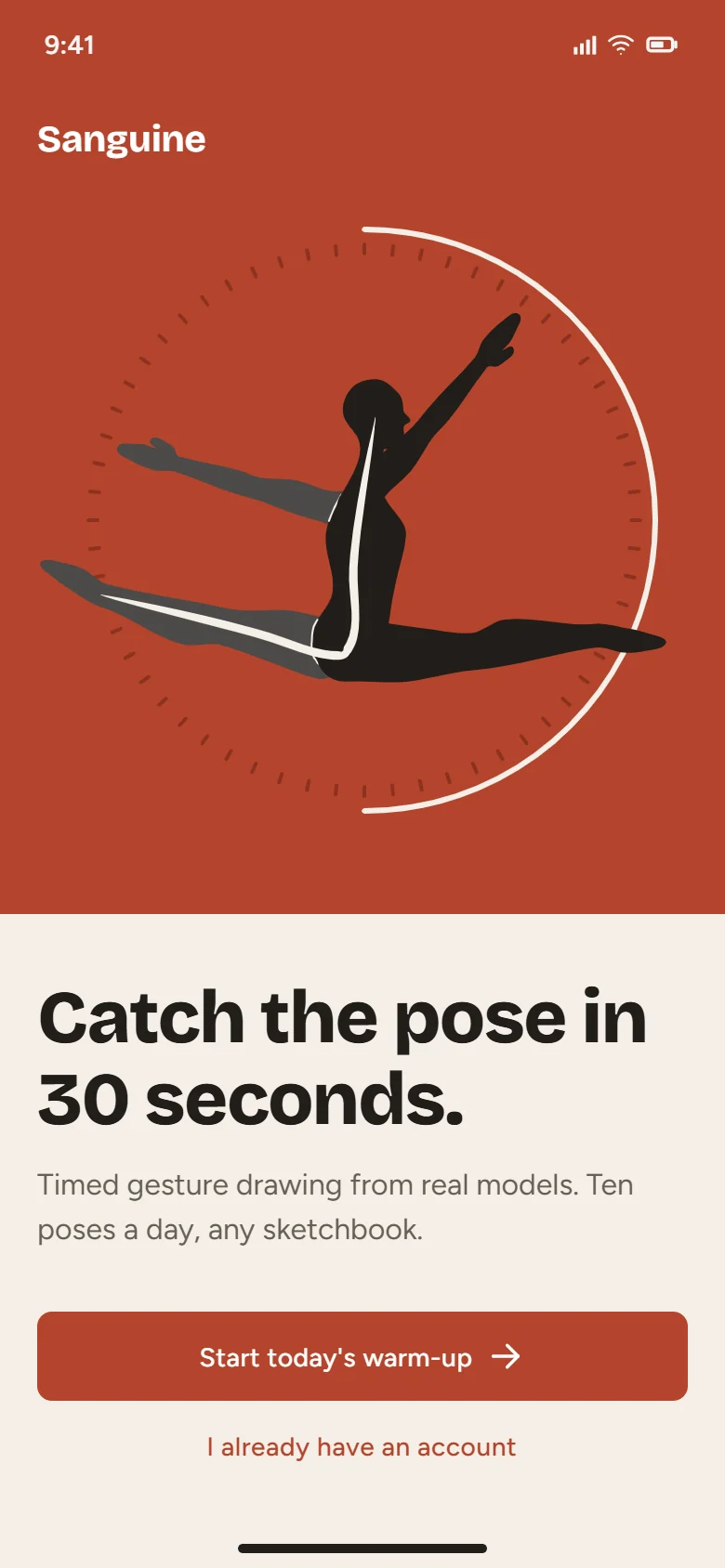
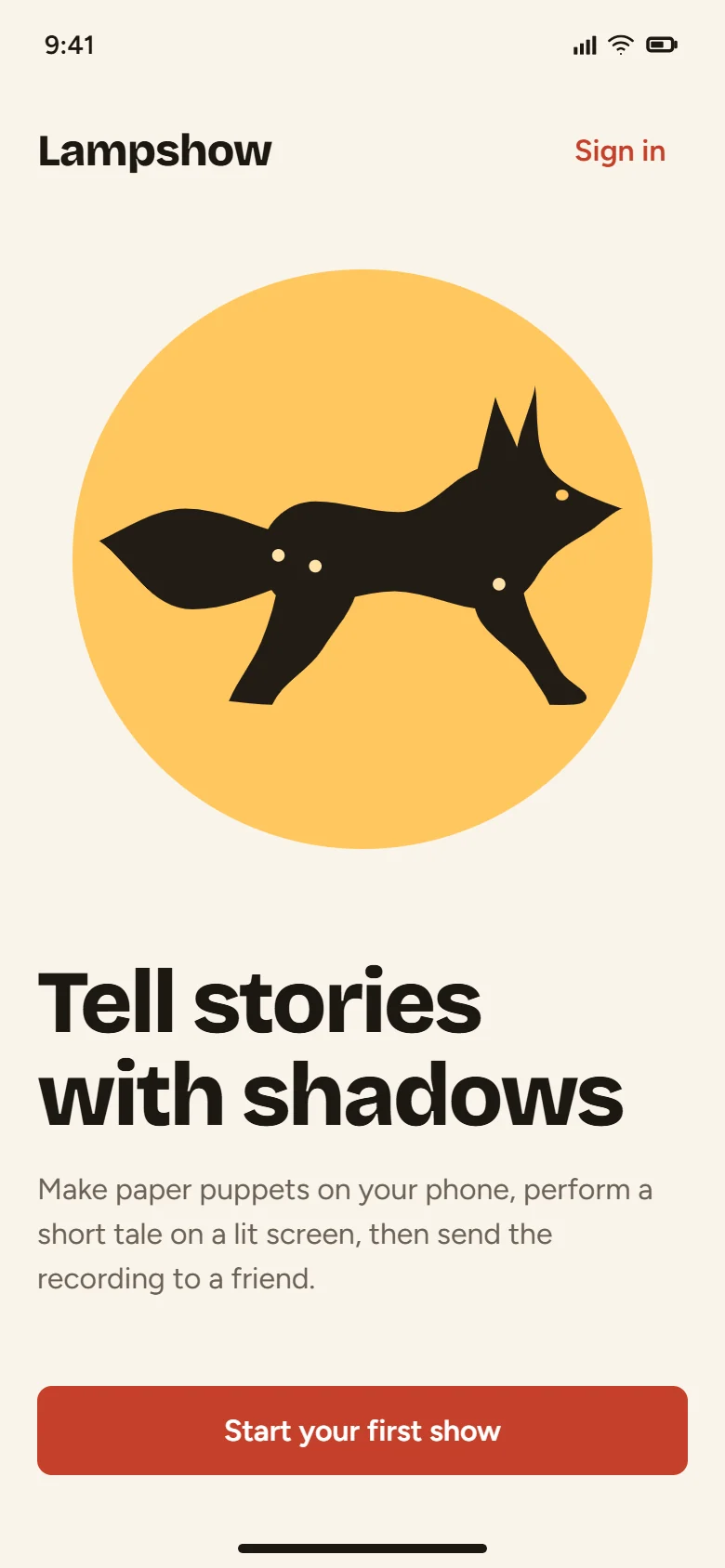
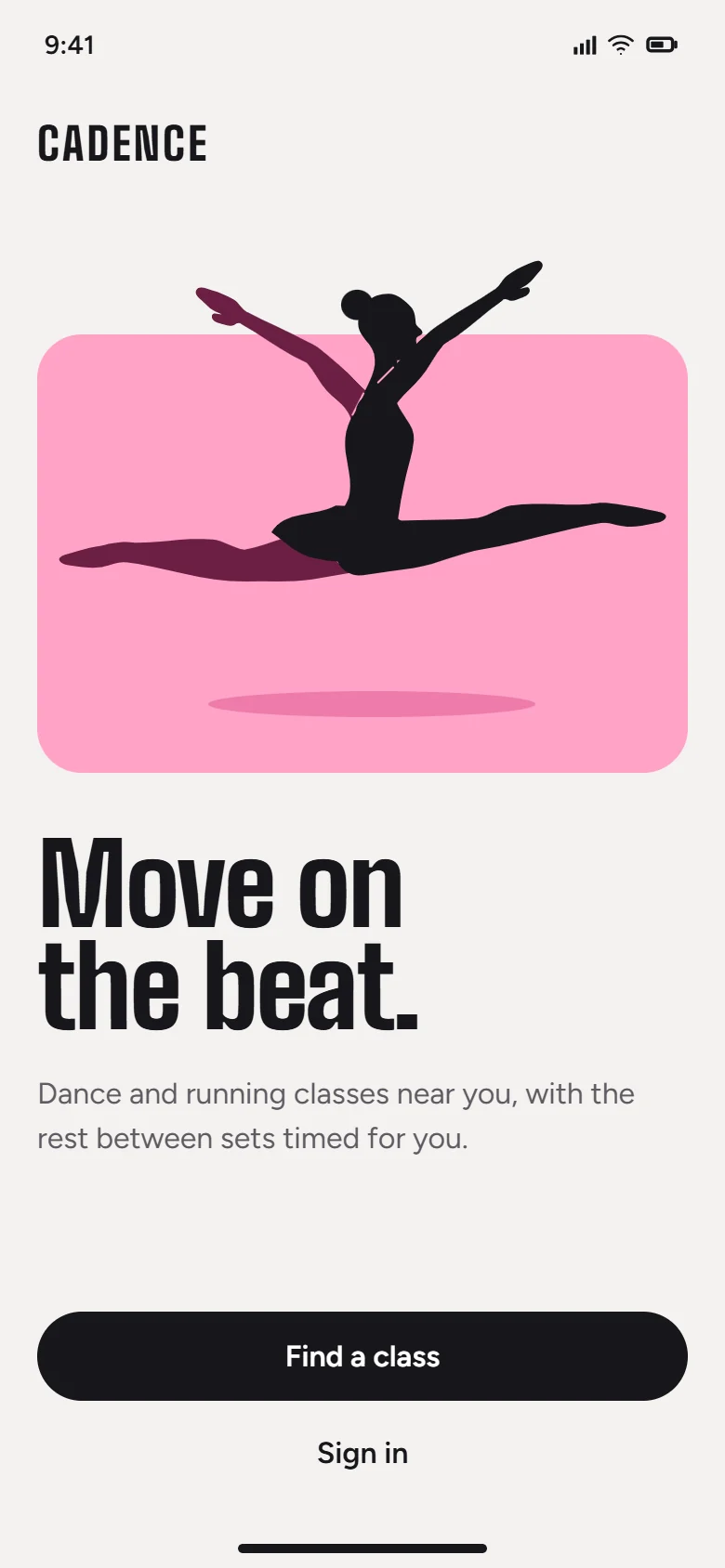
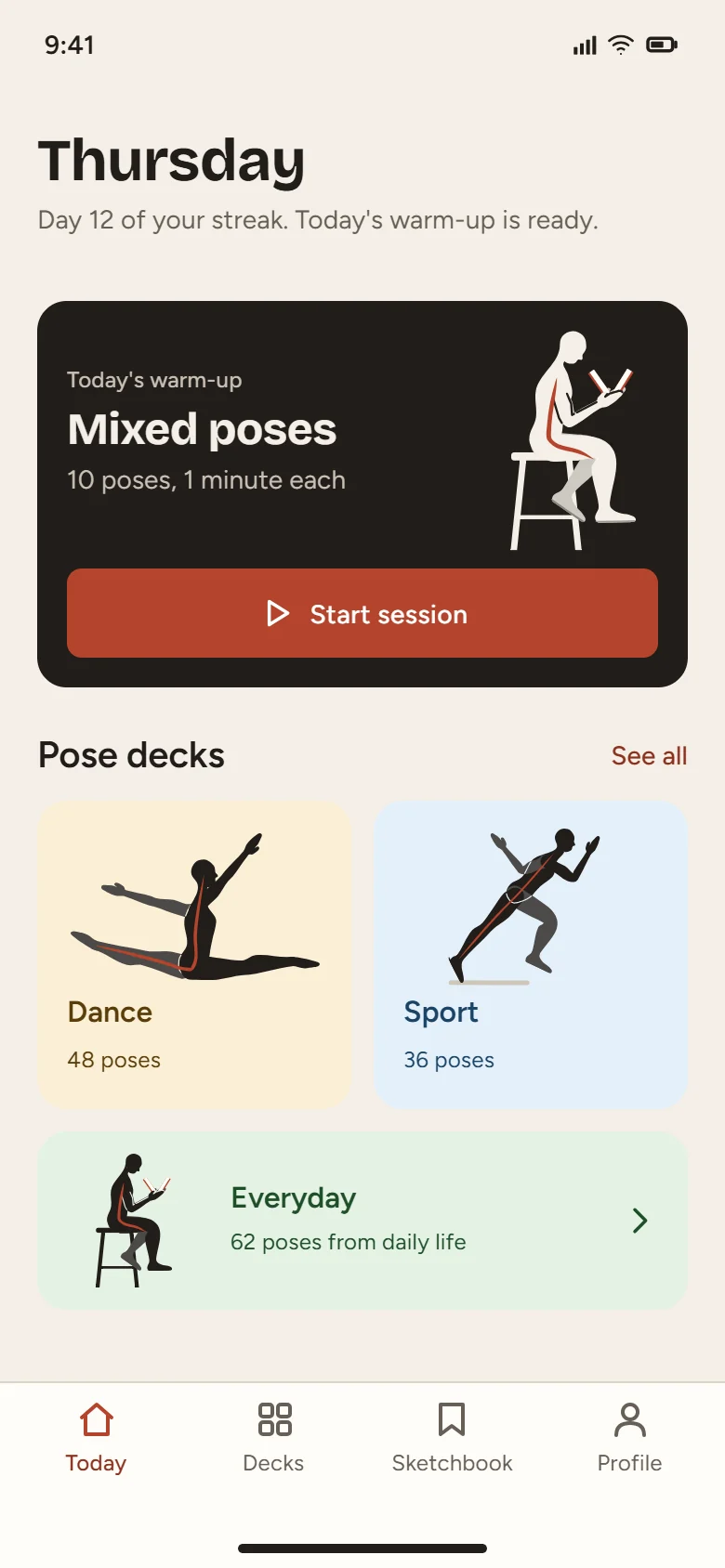
Three apps, twelve screens. Untouched.
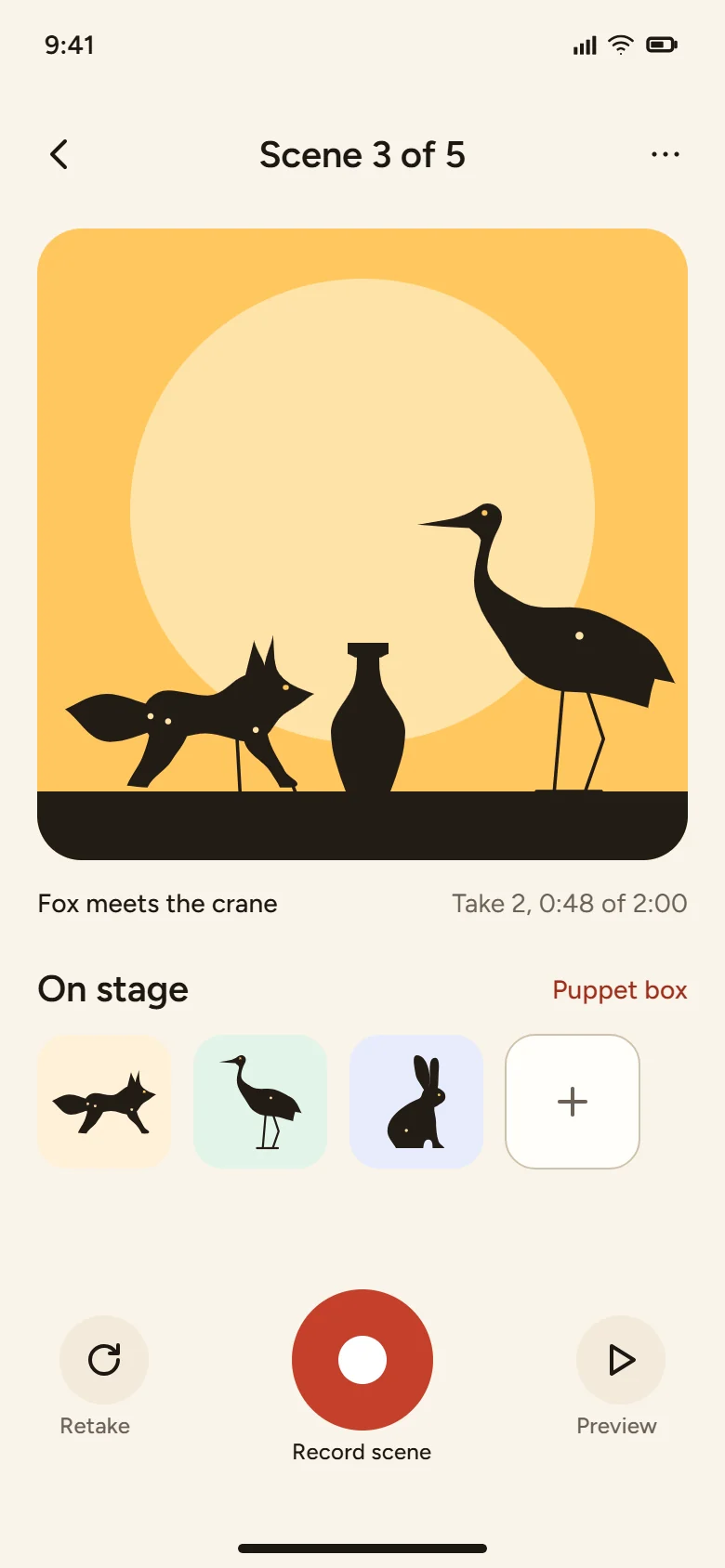
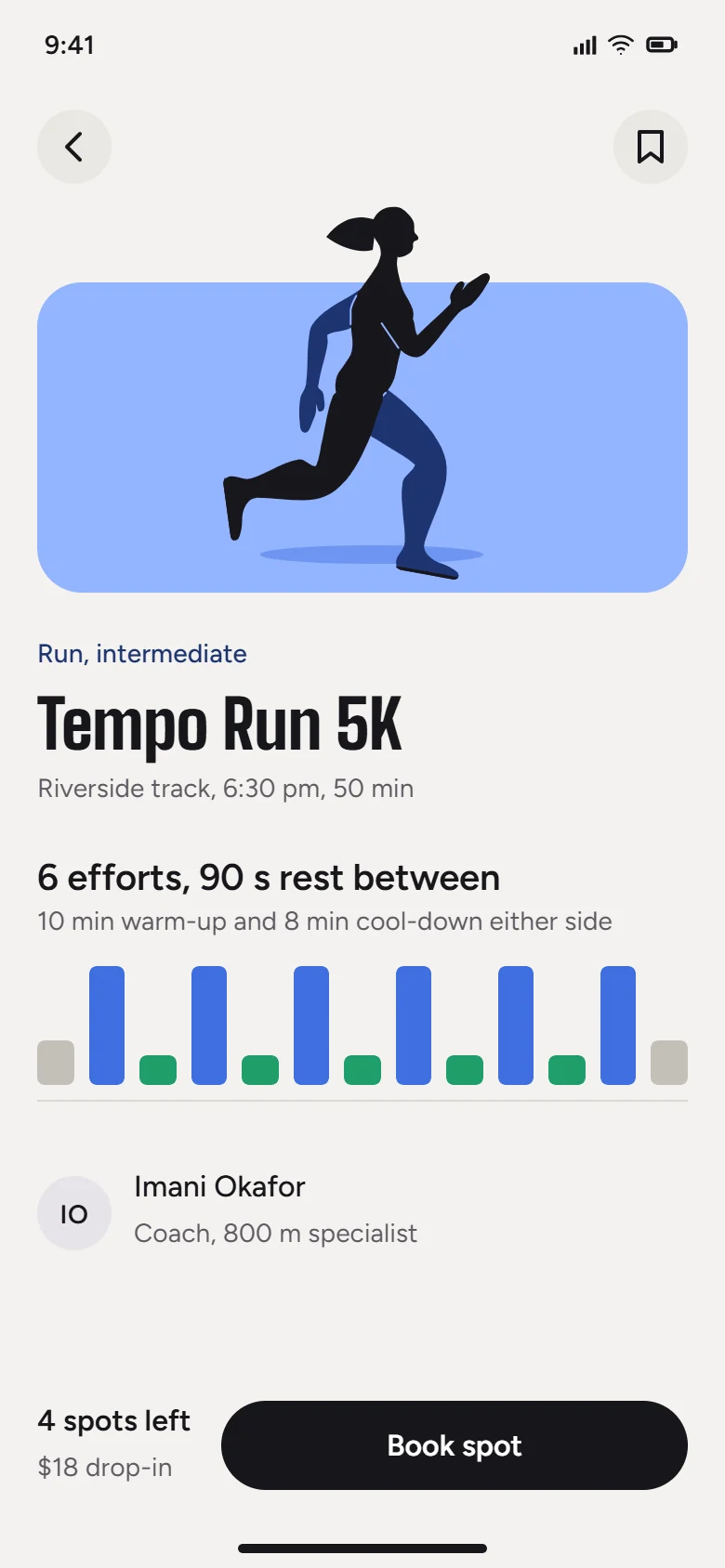
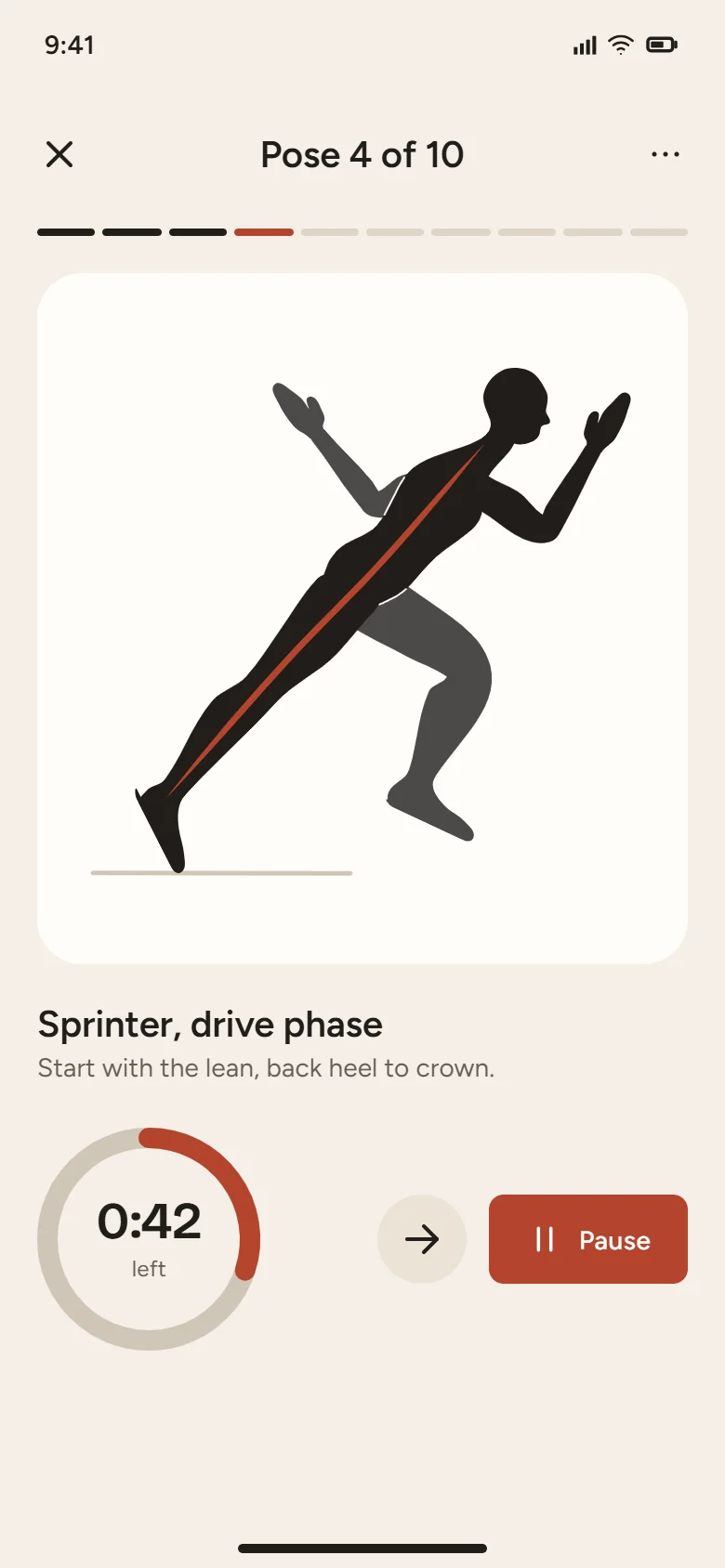
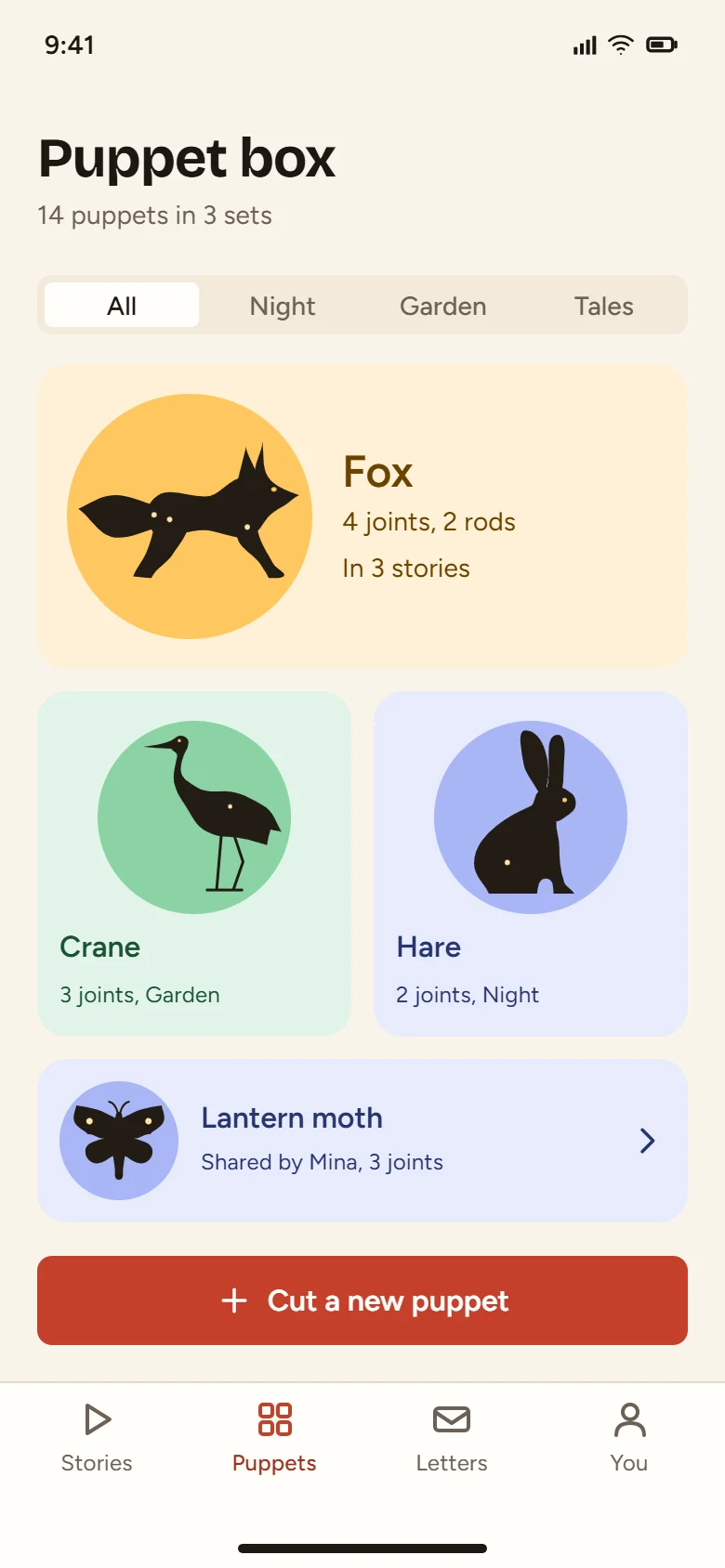
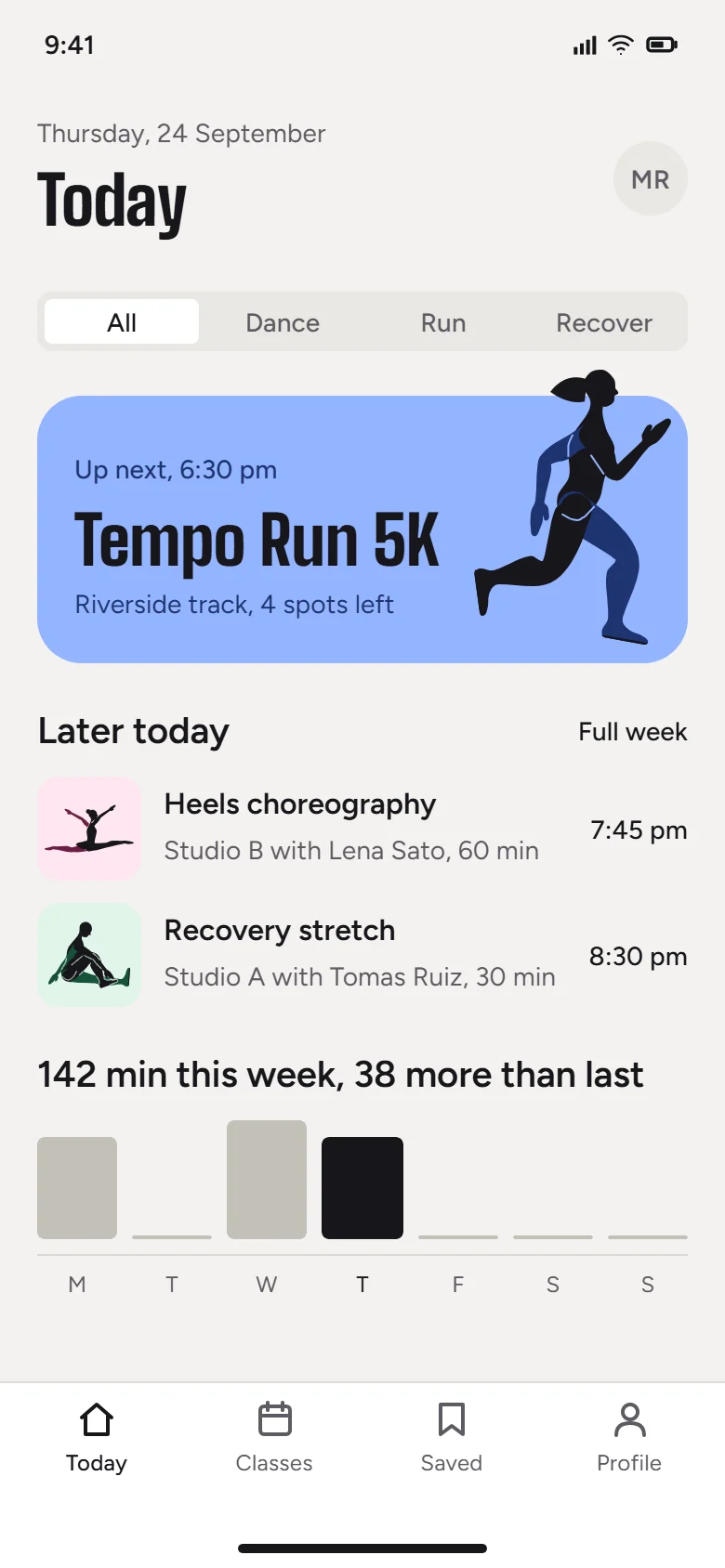
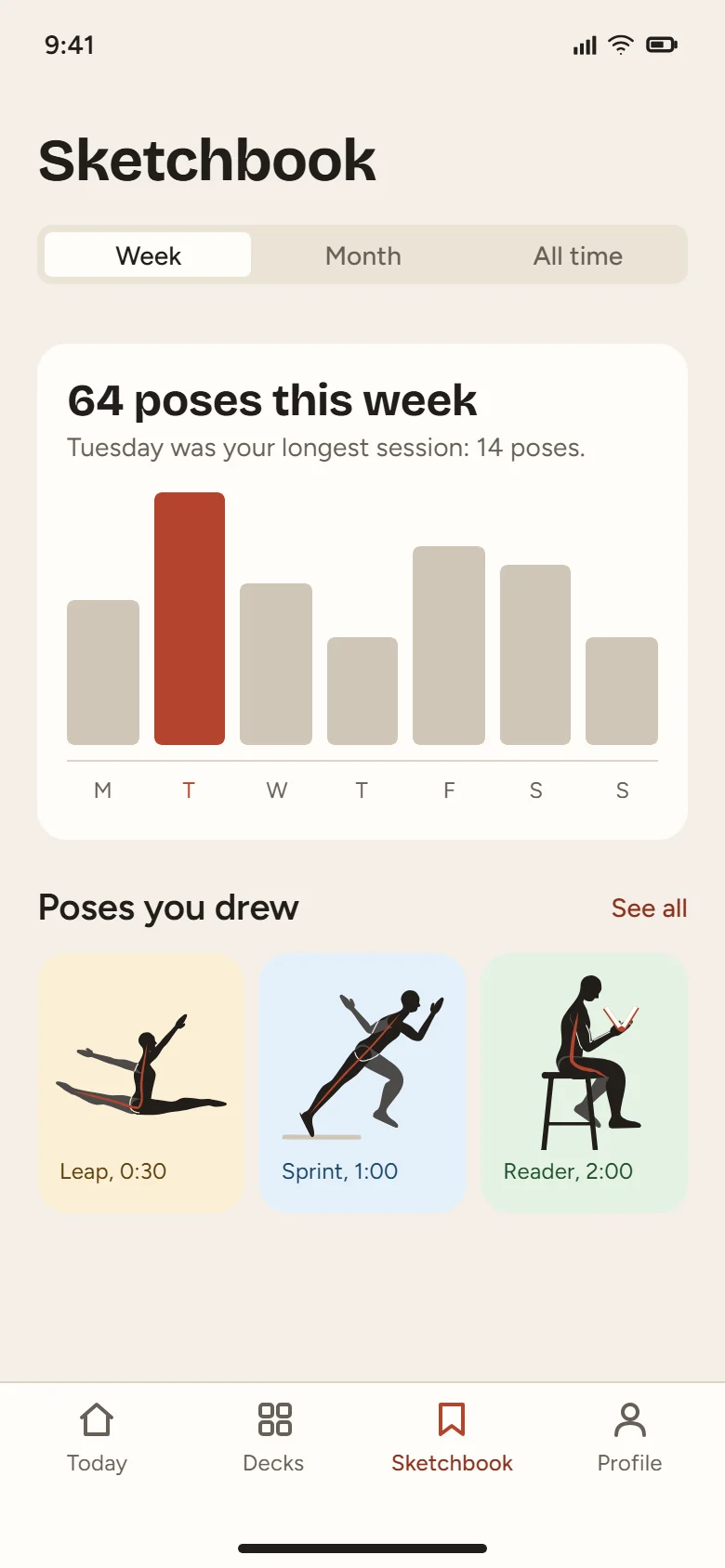
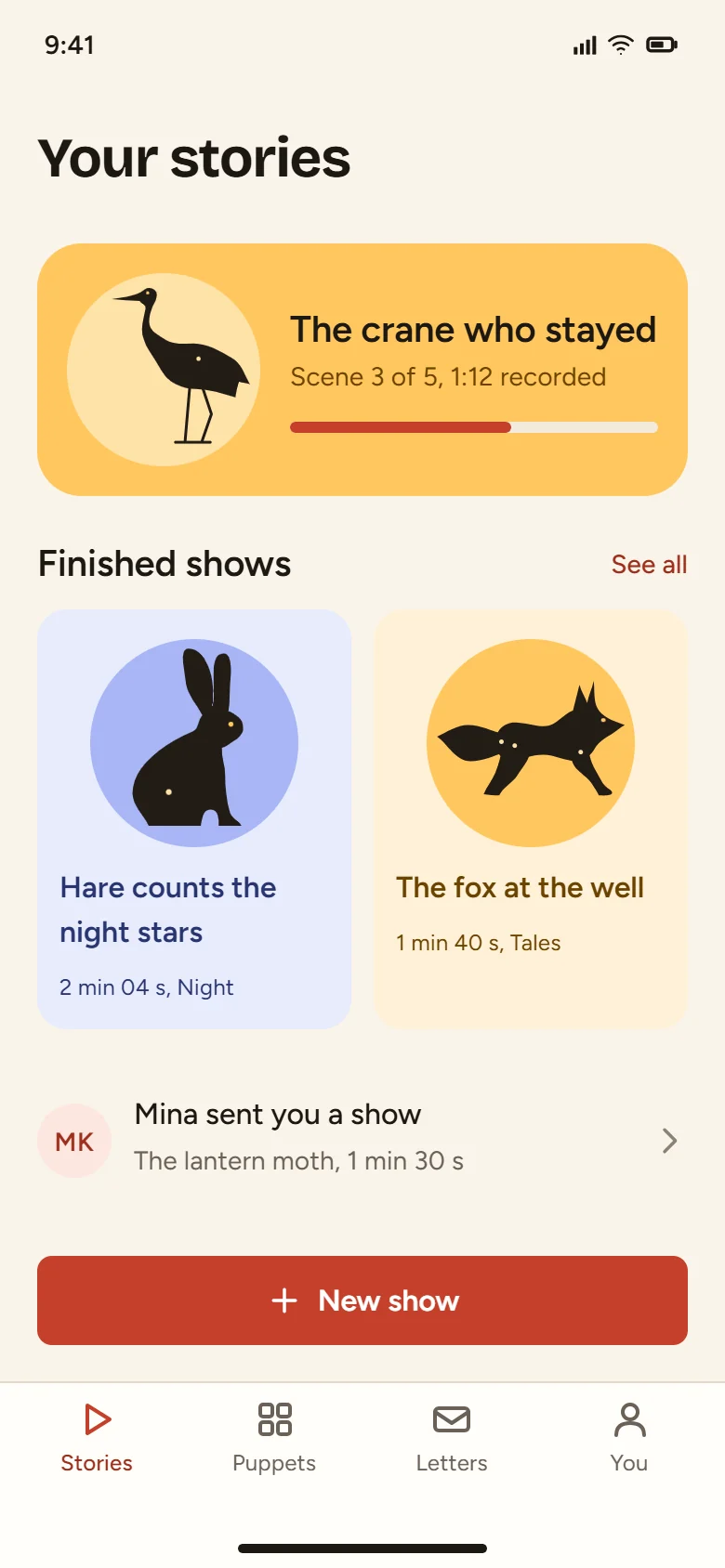
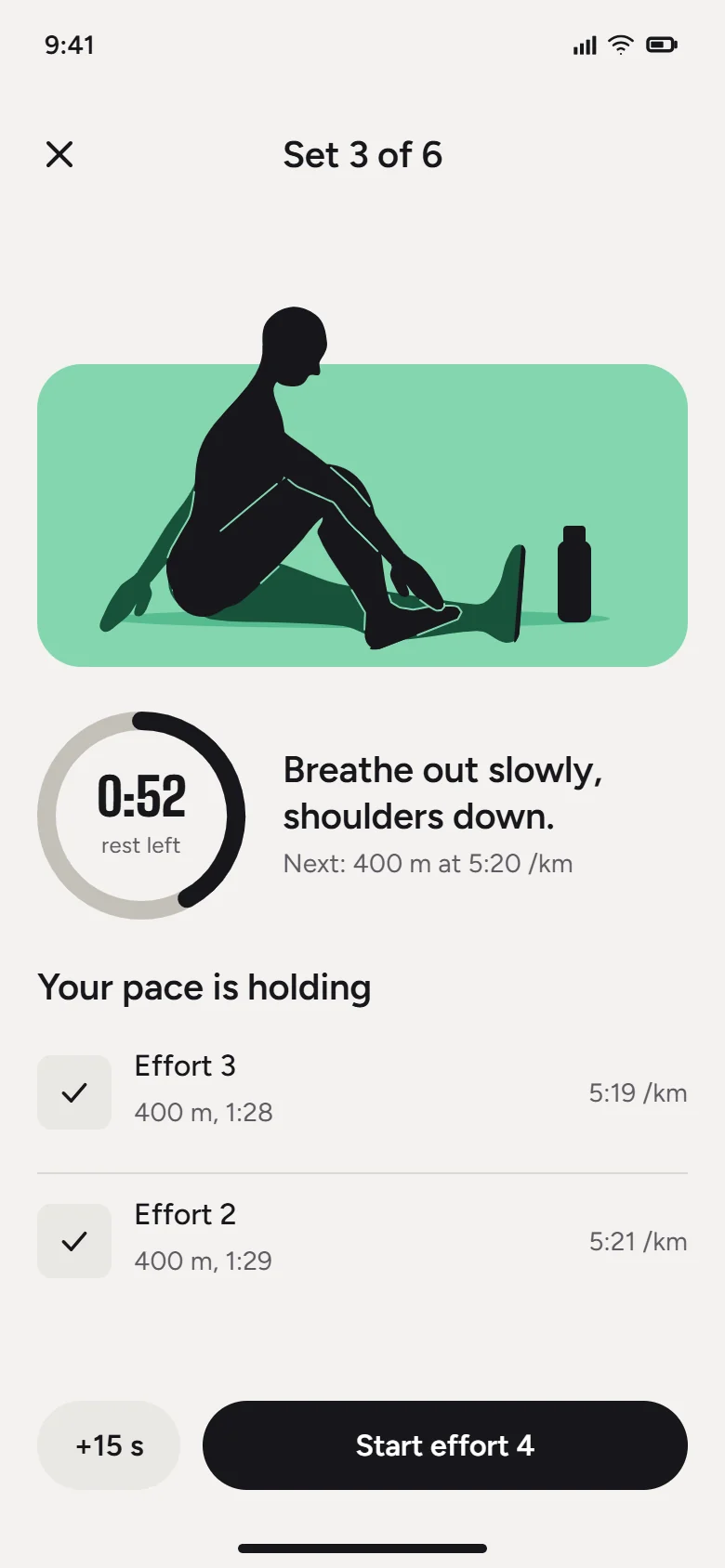
Describe the job. Your model hands back the finished file.
Real output. Untouched.
Sanguinefigure drawing practiceDesigned by Claude Opus 5.5 with the SVG Lab MCP
Lampshowshadow puppet storiesDesigned by Claude Opus 5.5 with the SVG Lab MCP
Cadencedance and running classesDesigned by Claude Opus 5.5 with the SVG Lab MCP
SVG Lab buildslayout, spacing, type, charts.
Your model bringsthe idea, palette, drawings and copy.
Three steps. The first one is today.
Bring your model.
Claude, ChatGPT, Codex, Cursor or OpenCode.
Send a prompt.
Plain words work: “a calm pricing screen for my app”
Get the file.
Saved in My Projects, ready to export as SVG, PNG or PDF.
Not a picture of a design. The design.
- Shapesreshape any path
- Textretype any word
- Coloursswap any token
Questions
What is the SVG Lab MCP server?
A remote MCP (Model Context Protocol) server that gives your AI app SVG Lab's Design Engine, the Design Engine for AI. You tell your AI what to make; SVG Lab builds it with the spacing, type and alignment right and saves it to your account. More about the MCP server at svglab.app/mcp-server.
Do I need to keep SVG Lab open?
No. Nothing needs to be open in SVG Lab, and there is no code to type in. Your model works on our servers and saves to My Projects.
What does it cost?
The SVG Lab MCP server is included in the Plus plan ($20 a month, 5,000 requests a month) and the Max plan ($40 a month, 15,000 requests a month). One tool call is one request, and calls that fail are not counted. See the plans.
What happens after I request early access?
Access is switched on straight away, and an email tells you how to connect your AI app. Early access remains open. The launch has been postponed; a new end date has not been set.
Is early access still open?
No, early access has ended. Every SVG Lab account gets 100 free MCP requests, one time, to try it. After that, choose Plus or Max, or buy a top-up, on the billing page.
Which apps work?
Any app with remote MCP. Setup is ready for Claude, Codex and OpenCode.