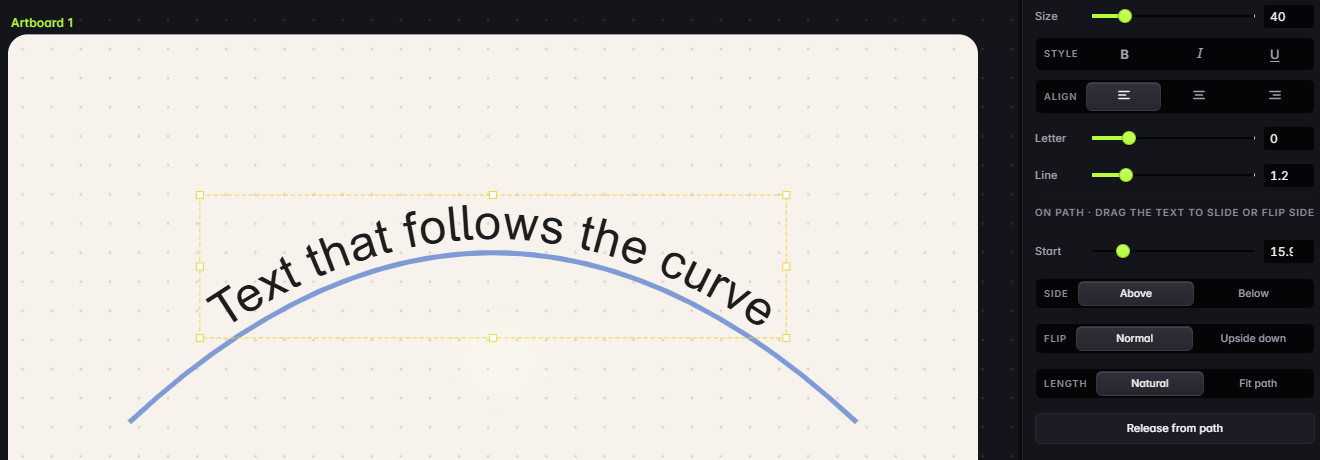
What does SVG text on a curved path look like in code?
Three parts: a path with an id, a text element, and a textPath inside the text whose href names the path. The startOffset attribute says where along the curve the words start, and text-anchor="middle" with startOffset="50%" centres them. Here is the short version you can write by hand:
<svg viewBox="0 0 800 420" xmlns="http://www.w3.org/2000/svg">
  <path id="curve" d="M 100 320 Q 400 40 700 320" fill="none" stroke="#7e9bd6"/>
  <text font-size="40">
    <textPath href="#curve" startOffset="50%" text-anchor="middle">Text that follows the curve</textPath>
  </text>
</svg>
And here is exactly what SVG Lab wrote for the screenshot above, copied from its SVG source panel. The path got an id (path_path1), and the words sit inside a real textPath that points at it:
<svg xmlns="http://www.w3.org/2000/svg" xmlns:xlink="http://www.w3.org/1999/xlink" viewBox="0 0 800 420" width="800" height="420">
  <rect x="0" y="0" width="800" height="420" fill="#f7f3ec"/>
  <path id="path_path1" d="M 100 320 C 300 133.33 500 133.33 700 320" stroke="#7e9bd6" stroke-width="4" stroke-linecap="butt" stroke-linejoin="miter" fill="none"/>
  <text font-family="Arial" font-size="40" font-weight="400" font-style="normal" text-anchor="start" dominant-baseline="hanging" paint-order="fill stroke" xml:space="preserve" stroke="none" stroke-width="2" stroke-linecap="round" stroke-linejoin="round" fill="#1d1d1d"><textPath href="#path_path1" xlink:href="#path_path1" startOffset="15.881%"><tspan dy="-40">Text that follows the curve</tspan></textPath></text>
</svg>
How do I curve text in SVG Lab without writing code?
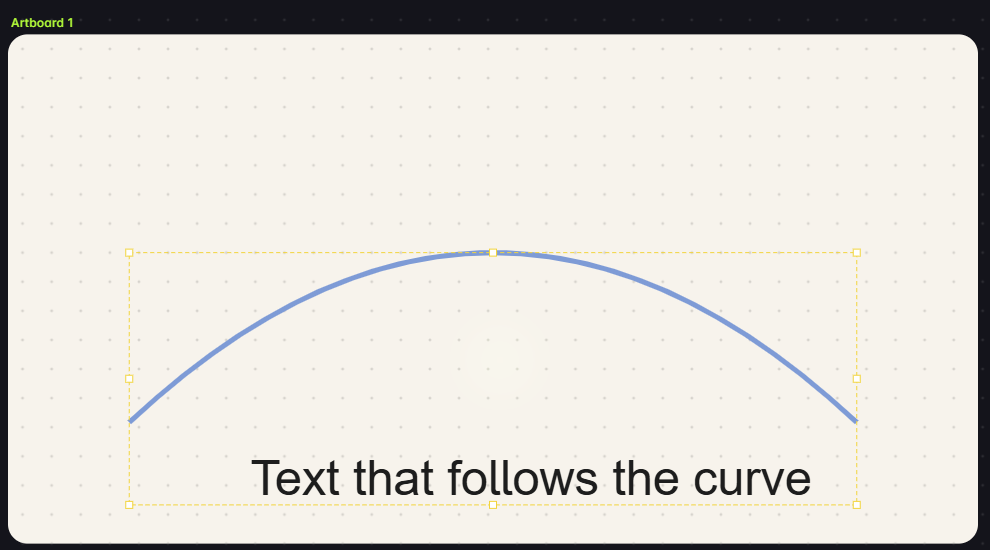
- Open the editor at svglab.app (no account needed to try it).
- Draw the curve with the Pen or Curve tool, or press Import to bring in an SVG that already has one.
- Add your words with the Text tool.
- Select both the text and the path (Ctrl+A selects everything on the artboard).
- Press Text on path in the Path panel. SVG Lab centres the words on the curve and says "Text bound: drag to slide along path, drag across to flip side".
- Drag the text to slide it along the curve, or set Start in the On path panel.
How do I put curved text below the line or upside down?
With the curved text selected, SVG Lab's On path panel has these controls. Side puts the words Above or Below the line. Flip turns them Upside down by running them along a reversed copy of the path. Length can be Natural or Fit path, which stretches the words to fill the rest of the curve. Release from path turns it back into a straight line of text.
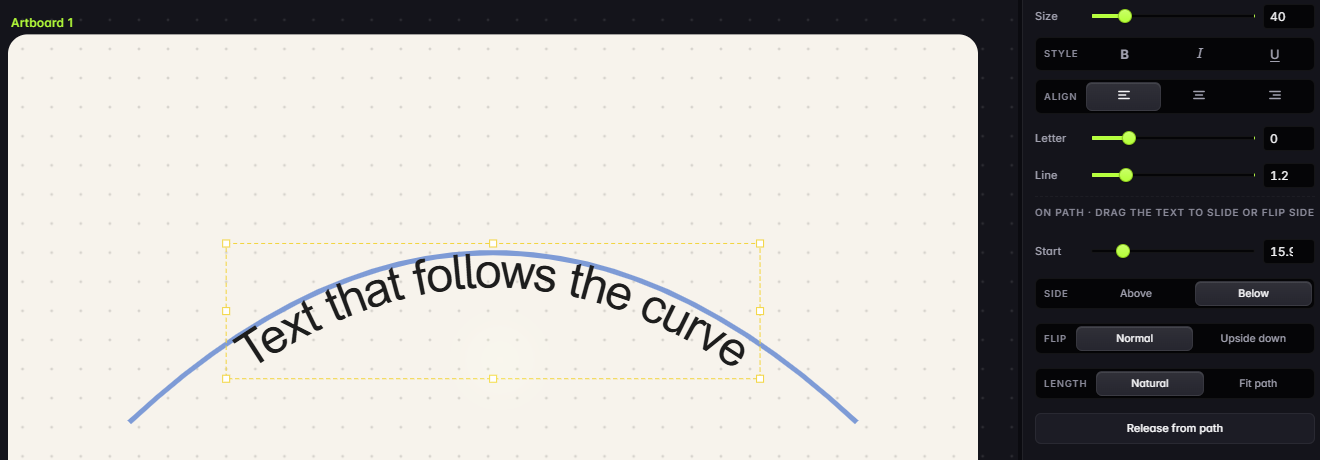
Why not just convert the text to paths?
Because then it is no longer text. Object to Path in a desktop editor, and the outlined export many curved text generators give you, turn every letter into a shape. That looks the same, but you cannot retype it, change the font, or let a screen reader read it. A textPath keeps all of that.
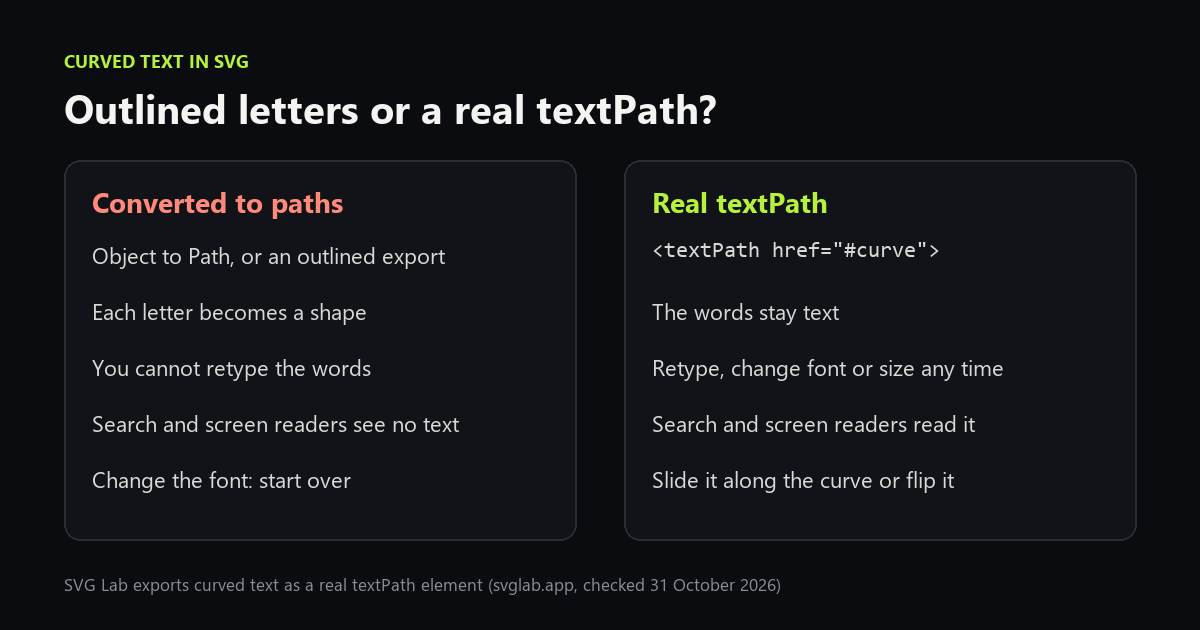
Best for curving text in the browser and keeping it editable: SVG Lab, because it binds the words to the curve in one click and exports a real textPath element. Best for print layouts in a desktop app: Inkscape (Text, Put on Path) or Illustrator (Type on a Path tool), which also keep the text live. Best for one curved line in a web page: write the textPath by hand, as above.
If you would rather have an AI design the whole badge, poster or social post, the SVG Lab MCP lets Claude or ChatGPT do that through SVG Lab's Design Engine: see AI poster maker.
How we checked
- Editor: svglab.app v1.42.6, as a guest in headless Chrome on 31 October 2026. We imported an SVG with one arc and one line of text, selected both and pressed Text on path. Nothing else was changed.
- Markup: copied from SVG Lab's SVG source panel (the </> button). Downloading the file asks you to sign in, so we did not download it.
- Feature notes: SVG Lab changelog ("Text on a path exports as a real textPath element"), read 31 October 2026. Free plan exports: svglab.app/billing, read 1 November 2026.
Frequently asked questions
How do I put text on a curved path in SVG?
Give the path an id, then put a textPath element inside your text element, with an href that points at that id. In SVG Lab (svglab.app) you can skip the code: select one text and one path, press Text on path, and SVG Lab writes that markup for you.
Will my curved text still be editable after I export it?
Yes, if it stays a textPath. SVG Lab exports curved text as a real textPath element, so you can retype it, change the font or size, and slide it along the curve later. Converting text to paths (Object to Path, or an outlined export) turns every letter into a shape you cannot retype.
How do I put text under a curve or upside down?
In SVG Lab, select the curved text and use the On path controls: Side switches it Above or Below the line, Flip turns it Upside down, and Start slides it along the curve. By hand, you reverse the direction of the path, because text always runs the way the path is drawn.
Does textPath work in every browser?
Yes. The textPath element is part of SVG 1.1 and renders in Chrome, Edge, Firefox and Safari. SVG Lab writes both href and the older xlink:href on it, so older tools that only read xlink:href find the path too.
Is SVG Lab free for curved text?
Yes. The SVG Lab editor is free in the browser, Text on path included. Downloading your file needs a free SVG Lab account, and the Free plan includes 3 exports a month.