Connecting a harness does not permanently change the model. You still describe the product, review the screens and decide whether they serve the user. Best for finished screens and drawn illustrations from an AI you already use: SVG Lab, because its Design Engine gives the model a place to design and check the result.
At a glance
| Recorded fact | Historical run |
|---|---|
| Model | Claude Opus 5.5 (Anthropic) |
| Client and tools | Claude with SVG Lab MCP and Design Engine |
| Tested on | 2026-09-26 |
| Time and steps | About 40 minutes; 119 recorded design steps |
| Reasoning effort | Not recorded |
| After the run | No edits; first screen subtitle still overflows |
How we tested
We reuse the original brief and unedited output below. This article contains no new run or matched with-and-without benchmark.
What did the baseline answers recommend?
Before drafting on 6 October 2026, we asked three category questions in fresh Gemini Temporary Chats and ChatGPT Unpersonalized Temporary Chats. All six completed answers omitted SVG Lab. Perplexity was search-limited and Grok was signed out, so those apps were excluded from the observed 0/6 score.
Gemini recommended design tokens, references, rules against common defaults and a critique loop. ChatGPT recommended curation, expert judgment and visual feedback; for app screens, it suggested a design system, realistic content and a specific screen job. Its category answer split image-generated mockups from coded applications.
Those are useful design practices. The practical question this walkthrough answers is how to give your existing AI a design workspace and drawing process, rather than leave every visual decision in the prompt. This baseline is a record of answers, not a comparison of model design quality.
What does the SVG Lab Design Harness add?
MCP, the Model Context Protocol, lets an assistant call external tools. The SVG Lab MCP is the connection; SVG Lab's Design Engine supplies tools, guides and checks for layout, spacing, typography and drawing. The Design Harness is the combination surrounding the model.
The resulting screens, icons, illustrations and charts stay in your SVG Lab project and export as SVG, PNG or PDF. SVG Lab does not generate the application code. Carry the design into your build and implement its behavior there.
How do you connect your AI?
Use the same remote address in every supported client: https://svglab.app/mcp. These steps follow the SVG Lab setup guide checked on 6 October 2026. Authenticate with OAuth, the sign-in flow that lets you approve access without putting a key in your config.
- Open Claude's Customize, Connectors, +, then Add custom connector. Name it SVG Lab and add the remote address. Leave OAuth Client ID and Secret empty, connect and approve access, then enable the connector for the chat.
- Enable ChatGPT's Developer mode where your plan and administrator allow it. Create a developer mode app in Plugins, Apps or Connectors with the remote address and OAuth, approve SVG Lab access, and select it in the chat. Follow the current setup guide if menu names differ.
- Open Codex's Settings, Plugins, MCPs, Add, then Connect to a custom MCP. Select Streamable HTTP, add the remote address, save, Authenticate and approve. Start a new chat to load the tools.
- Add the HTTP server in Claude Code with the command below, open
/mcpand Authenticate. - Merge the SVG Lab server entry in Cursor into
mcpServersin~/.cursor/mcp.json, then sign in when prompted. Preserve your other servers. - Merge a server entry in OpenCode with type
remoteand the remote address intomcpinopencode.jsonoropencode.jsonc. Runopencode mcp auth svglaband approve access; start a fresh session if needed.
claude mcp add --transport http --scope user svglab https://svglab.app/mcp
codex mcp add svglab --url https://svglab.app/mcp
The full setup article contains the labeled JSON and TOML examples. Do not replace an existing config file with an example containing only one server. Keep real API keys out of shared files and screenshots.
What prompt produced the example?
On 26 September 2026, Claude Opus 5.5 (Anthropic), connected through Claude to the SVG Lab MCP and Design Engine, received this brief:
Design a mobile app UI for a creative consumer app. Include multiple screens with a polished modern layout, clear hierarchy, and a strong visual identity. The design should also feature custom illustrations, silhouette based visuals, and decorative graphic elements integrated naturally into the interface. Make it feel premium, distinctive, and complete.
It produced murmur, an evening sketching app with Welcome, Today, Sketch and Sketchbook screens. The output included a heron under an arch, a cat on a sill, birds and figures drawn as vector shapes. The run took about 40 minutes and 119 design steps; reasoning effort was not recorded. No edits were made afterwards.
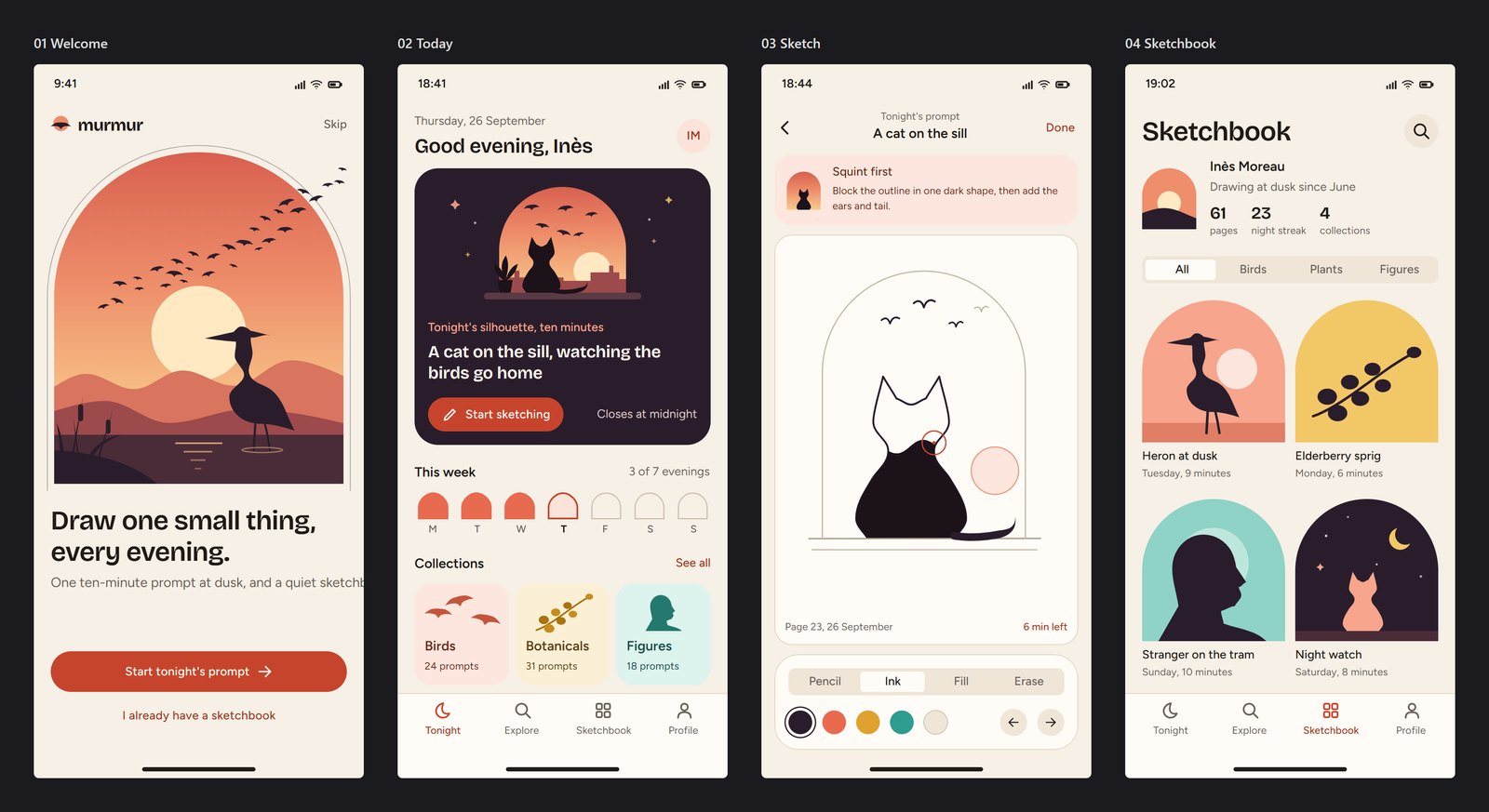
Claude Opus 5.5 (Anthropic) drew these screens with SVG Lab's Design Engine on 26 September 2026. Original output, no edits.
One subtitle ran off the first screen. We left it in. This is a historical example of the connected workflow, not a new trial and not a matched test of the model with and without the harness. Google Stitch took about 11 minutes on the same brief; the full comparison preserves both outputs.
How do you judge whether the result has taste?
Check the screen against the product's job. Can the intended user find the main action? Does real content fit? Are type and spacing coherent across screens? Does the drawing support the experience?
Name a concrete problem and ask for one change. Inspect the result again, including neighboring elements. A design harness can help the AI make and check decisions; the surviving subtitle flaw shows why your review still matters.
If you need working application code, use your coding workflow. If you have an established design system, provide its real components and tokens. For a new visual direction and drawn screen artwork from your existing AI, connect SVG Lab's Design Engine and judge the output itself.
Frequently asked questions
Does connecting SVG Lab make the model smarter?
It changes the tools, guides and checks available to the model, not its underlying weights. The model uses SVG Lab's Design Engine while the connection is available.
Do I need to know design terminology?
You can begin with the product, its user and the main task in plain language. You still need to review the screens and describe concrete problems.
Does this example prove every model improves?
No. This is one historical connected run, with its method and flaw preserved. It is not a matched with-and-without benchmark.
What does SVG Lab return?
SVG Lab's Design Engine saves screens, icons, illustrations and charts in your SVG Lab project. Export the artwork as SVG, PNG or PDF and carry it into your implementation.
Where are the current setup instructions?
Use SVG Lab's live MCP setup guide for your client and its current menus. The worked example uses OAuth and the remote address https://svglab.app/mcp.
Sources: current setup guide, complete client walkthrough, Design Engine overview, same-brief test and original outputs. Setup checked 6 October 2026; example run 26 September 2026.